VolPilot: A Volatility 3–Based MCP Server for Windows Memory Forensics
You have a Windows memory image. You have a process list. Now you need to decide what deserves a closer look—and connect that process to its command line, loaded DLLs, open handles, and network activity.
That is the workflow I want to make easier with VolPilot, my open-source MCP server for Volatility 3.
Instead of repeatedly translating an investigation question into individual plugin calls, you can ask an MCP-compatible assistant:
Can you find suspicious processes?
You do not need to name a plugin or write a detailed analysis plan. The assistant uses the tool descriptions provided by VolPilot to select relevant tools, run the analysis, and explain the results. Volatility 3 performs the memory analysis; you review the evidence and conclusions.
Explore VolPilot on GitHub—the source, setup instructions, and tool catalog are public under Apache-2.0.
From running plugins to following evidence
In my earlier Windows 11 memory forensics tutorial, I walked through image acquisition, saving analysis configuration, and inspecting artifacts with individual plugins. I also explored platform-specific preparation in my Linux and macOS guides.
If you followed the Windows tutorial, think of this as the next step after running pslist or netscan: connecting their results to decide what to investigate next. VolPilot also carries forward the idea of reusing analysis setup by maintaining a Volatility context across tool calls.
VolPilot currently analyzes Windows memory images only. The computer running the server and the operating system represented in the image are separate considerations. Running VolPilot on a compatible macOS or Linux Python host does not add support for macOS or Linux evidence images.
For this walkthrough, bring a Windows training image that you are authorized to analyze. VolPilot does not acquire memory, and the repository does not include memory images or malware samples.
What VolPilot adds to Volatility 3
Model Context Protocol (MCP) lets an assistant discover and invoke tools exposed by a server. VolPilot exposes forensic tools backed by Volatility 3, including descriptions of their purpose and parameters.
The workflow is straightforward:
- You ask a forensic question in your assistant.
- The assistant selects and calls a VolPilot tool.
- VolPilot runs the relevant analysis against the configured image.
- Structured results return to the assistant for explanation and follow-up.
VolPilot also includes correlation tools implemented as Python comparison rules. For example, network_process_correlation connects network records with process context, while triage_process assembles several types of evidence for one PID. These comparisons happen in the server; the assistant interprets their results.
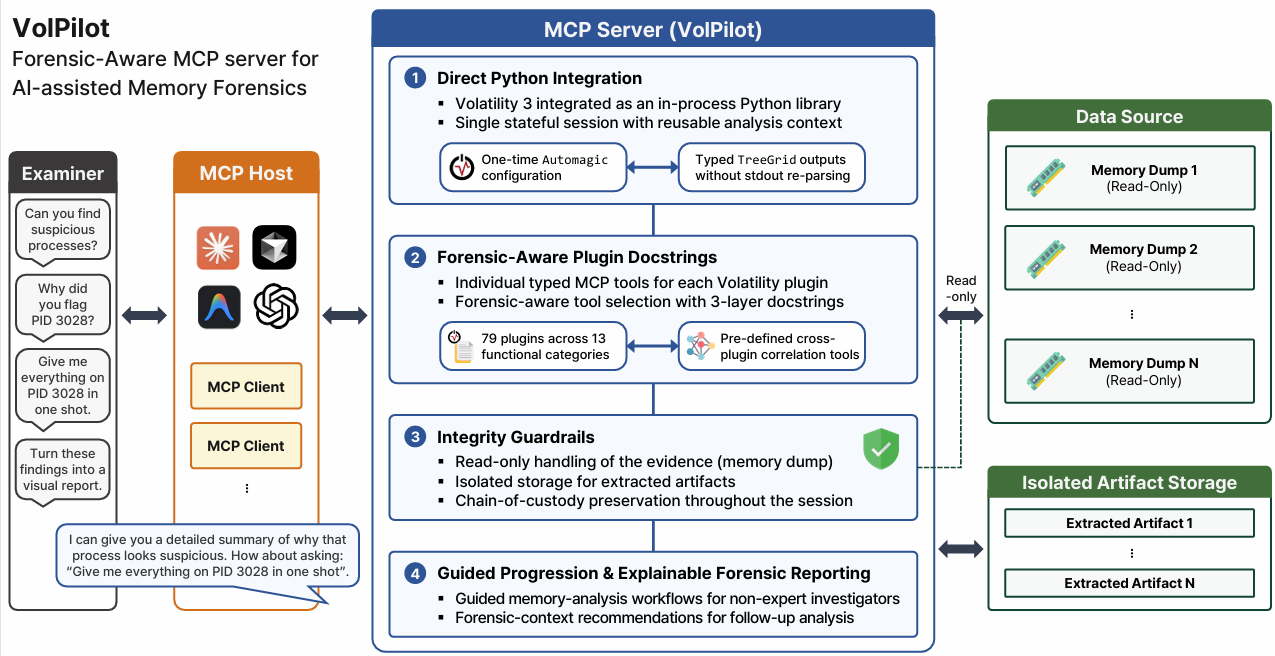
Architecture diagram from the VolPilot README. The plugin coverage shown reflects the default installation. Each server session analyzes one image; the images on the right represent possible inputs across sessions.
VolPilot provides 87 MCP tools by default, or 96 with the optional dependencies installed.
Availability does not mean every plugin works on every Windows image. Windows version, image contents, symbols, and dependencies still matter. See the tool catalog for the mapping and compatibility notes.
Install VolPilot
Install Git and uv, then run:
git clone https://github.com/cpuu/VolPilot.git
cd VolPilot
uv sync --frozen --python 3.12
This installs the locked dependencies, including Volatility 3 version 2.28.0. The project requires Python 3.10 or later; the command selects Python 3.12.
For the additional plugin dependencies, use:
uv sync --frozen --python 3.12 --extra full
The default installation is enough for the workflow below. Optional native dependencies may require additional setup on your host. Initial image analysis may also need to download matching Windows symbols.
Connect your assistant
VolPilot is an MCP server, so it is not tied to a particular paid model or provider. I have also confirmed integration with open models through an MCP-compatible client. The client needs to support MCP, and the model needs to support the tool-calling workflow; analysis quality can vary between models.
Claude Desktop
Here is a Claude Desktop example using VolPilot's local stdio server. Open the app's developer configuration, then add volpilot under mcpServers. If other servers are already configured, preserve those entries.
{
  "mcpServers": {
    "volpilot": {
      "command": "uv",
      "args": [
        "--directory",
        "/absolute/path/to/VolPilot",
        "run",
        "--no-sync",
        "python",
        "mcp_server.py"
      ],
      "env": {
        "VOL_IMAGE_PATH": "/absolute/path/to/memory.vmem",
        "VOL_DUMP_DIR": "/absolute/path/to/dumps"
      }
    }
  }
}
Replace all three paths with your own absolute paths. On Windows, paths such as C:/forensics/VolPilot and C:/evidence/memory.vmem avoid JSON backslash escaping. If the app cannot locate uv, use its absolute executable path in command.
VOL_IMAGE_PATH selects the existing image. VOL_DUMP_DIR is optional for analysis but required for tools that extract files. Each server session is bound to one image; restart the server to change it.
Save the configuration and fully restart Claude Desktop. The client launches VolPilot itself, so you do not need a second server running in a terminal. Startup hashes the image, which can take time for large files.
The official local MCP guide explains where to find Claude Desktop's configuration and logs. Other clients that support local stdio MCP servers can use the command and environment variables above in their own configuration format.
ChatGPT
For a desktop setup with local MCP support, open Settings → MCP servers → Add server, name it volpilot, and choose STDIO. Use the same command, arguments, and environment variables as above, then save and restart the connection. See OpenAI's local MCP guide.
Alternatively, in a desktop setup sharing Codex configuration, add this to ~/.codex/config.toml:
[mcp_servers.volpilot]
command = "uv"
args = ["--directory", "/absolute/path/to/VolPilot", "run", "--no-sync", "python", "mcp_server.py"]
startup_timeout_sec = 180

[mcp_servers.volpilot.env]
VOL_IMAGE_PATH = "/absolute/path/to/memory.vmem"
VOL_DUMP_DIR = "/absolute/path/to/dumps"
Replace the paths as in the Claude Desktop example. The startup timeout allows time to hash the image; larger images may need more time.
For ChatGPT in a browser, connect through Secure MCP Tunnel:
- Obtain a tunnel ID, the required Platform permissions, and a runtime API key; install
tunnel-clientfollowing the official guide. - Configure a local stdio profile to launch the command below. Pass
VOL_IMAGE_PATHand, if needed,VOL_DUMP_DIRto the server process. - Keep the tunnel client running. In ChatGPT Plugins, add a custom MCP server, choose Tunnel, select your tunnel, and finish creating the connection. Enable it in your conversation.
uv --directory /absolute/path/to/VolPilot run --no-sync python mcp_server.py
The browser does not read your local configuration file, and VolPilot currently exposes stdio rather than an HTTP endpoint. ChatGPT connection availability depends on account and workspace permissions. These setup instructions follow the official documentation; they are not a report of a new end-to-end ChatGPT test.
Open models and other MCP clients
You can also connect an MCP-capable client backed by an open model. Register VolPilot as a local stdio server using the same launch command and environment variables, enable its tools, and start asking questions. The model runs in your chosen client or inference service; VolPilot supplies the forensic tools.
Data handling: with a cloud-hosted assistant, requested tool results are sent to the assistant provider even though VolPilot reads the image locally. Start with an appropriate training image and use a client permitted for your evidence.
Start with a simple question
Once VolPilot is connected, you can ask ordinary questions about your memory image. The README shows two starting points: identifying the image and looking for suspicious processes. Here is how to begin without putting tool names in your prompts.
“What can you tell me about this memory image?”
What can you tell me about this memory image?
The assistant can use VolPilot to retrieve system information and explain what it finds, including the Windows version and architecture. You ask the question; it handles the tool call and turns the returned fields into a readable response.
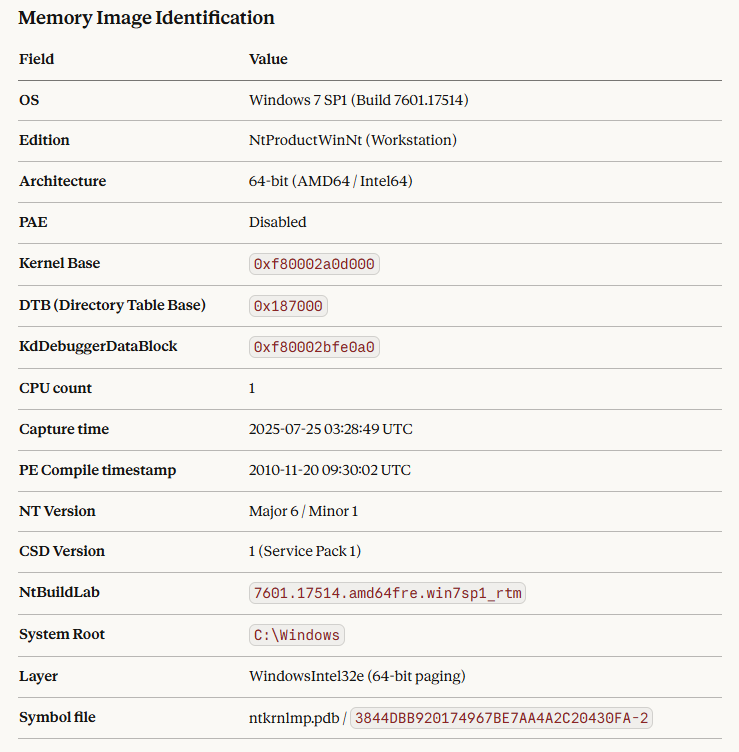
Image identification example reproduced from the VolPilot README. This example shows a Windows 7 SP1 image.
“Can you find suspicious processes?”
Can you find suspicious processes?
The assistant can inspect the process list and use relevant VolPilot tools to investigate candidates. You do not need to specify plugin names, comparison rules, or every field you want returned.
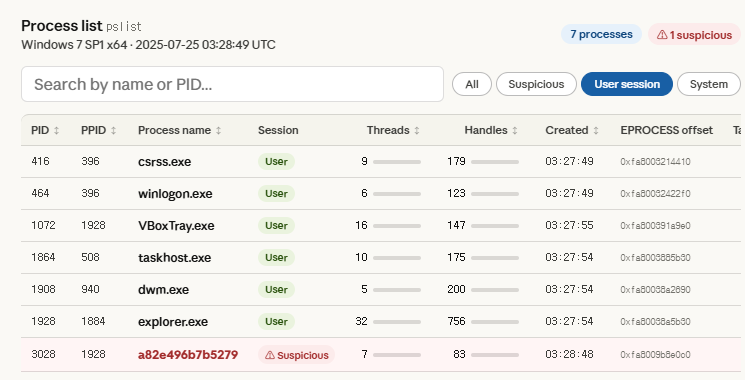
Process analysis example reproduced from the VolPilot README. The displayed response highlights a candidate for further investigation.
These are the same example images used in the README, rather than a new run of the prompts above. The presentation and exact tool sequence depend on the client, model, and evidence. A suspicious label is an investigation lead that still needs review.
Keep the conversation going
After a candidate appears, follow up naturally:
Why does that process look suspicious?
Tell me more about that process.
Does it have any network connections?
The assistant can use the conversation to identify which process you mean and select further tools. VolPilot can bring together command-line details, DLLs, handles, network records, and suspicious memory regions. If several processes are under discussion, name the process or give its PID.
That is the experience VolPilot is designed for: a short question from you, followed by tool selection, analysis, and a detailed explanation from the assistant. You can steer the investigation through follow-up questions as you learn more.
Finish with a summary
When you are ready to wrap up, ask:
Check that the memory image is unchanged and summarize the findings.
VolPilot provides an integrity tool that compares the image's current SHA-256 with its session-start value. The assistant can include that result alongside the findings and suggested next steps. Check that the verification actually ran; a hash match checks the image against the baseline, not the accuracy of every conclusion.
Keep the supporting evidence available as you review the summary. A network connection or suspicious memory region needs context, and an unavailable check should not be treated as a clean result. Some tools also have limits: for example, the consolidated process-triage tool currently requires a process present in the active process list.
VolPilot reuses its analysis context and caches results within the session to support follow-up questions. The repository includes evaluation materials if you want to inspect the experiments and their scope.
Try it on a Windows training image
Start with one small objective: identify the image, inspect the processes, and investigate one candidate. Compare the assistant's explanation with the returned artifacts. That is enough to decide whether this workflow helps you.
If VolPilot is useful to you, give the repository a star on GitHub. It helps others discover the project and lets me know there is interest in this approach to memory forensics.
If something fails, open an issue with the client, tool name, Windows version if known, and a sanitized error or reproduction. Please leave private evidence and sensitive output out of public reports.
What would you investigate first: a suspicious process, an unexplained connection, or an unusual DLL?


![[Book Review] Hacking APIs](https://cdn.hashnode.com/res/hashnode/image/upload/v1691992782649/8c13c6f2-bf1c-4042-8082-da97074cecdb.png)
![[Book Review] Linux Basics for Hackers](https://cdn.hashnode.com/res/hashnode/image/upload/v1686639994828/255a4c9e-9ff0-414f-97c3-804b99f3e12d.jpeg)